
Meta Conversion API
Send subscription lifecycle events from Superwall to Meta's server-side Conversion API. Use this integration to report subscriptions, renewals, cancellations, refunds, and other revenue events to your Meta Pixel.
Use the Meta Conversion API integration to forward Superwall subscription lifecycle events to Meta over a server-side API. This is the integration to use when you want Meta to receive renewals, cancellations, expirations, refunds, and other webhook-driven revenue events.
Note: If you need browser-side tracking for web paywalls, see Facebook Pixel. That integration tracks client-side paywall events and does not send subscription lifecycle events.
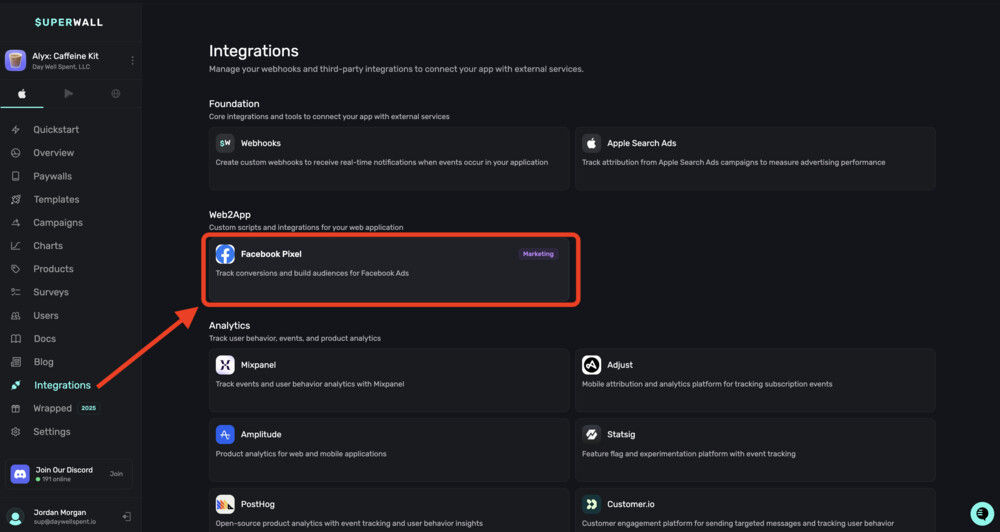
In the Marketing section within Integrations, you can connect your Meta Conversion API integration in Superwall:
Features
- Server-side event tracking: Events are sent directly to Meta's servers.
- Standard event mapping: Superwall maps subscription events to Meta standard events where possible.
- Sandbox environment support: Use separate credentials for sandbox events.
- Test event mode: Validate events in Meta Events Manager before going live.
- Flexible revenue reporting: Send gross revenue or net proceeds.
- Anonymous user handling: Control how events behave when a user has no
originalAppUserId. - Deduplication: Event IDs prevent duplicate event counting.
Set up in Superwall
Set this up from the dashboard UI, not by manually building a JSON payload.
- Open your app in Superwall.
- Go to Integrations.
- In Marketing, open Meta Conversion API.
- Fill in the fields shown in the form.
- Click Enable Meta Conversion API.
If the integration is already connected, Superwall shows an overview with status, configured field count, recent delivery performance, and an Edit Configuration button.
Revenue tracking requirement
This integration depends on Superwall revenue tracking. If revenue tracking is not configured, the dashboard shows a Revenue tracking required banner and blocks the form until you set that up first.
Fields shown in the dashboard
| UI field | Required | What to enter |
|---|---|---|
Access Token | Yes | A Meta access token with ads_management permission |
Pixel Id | Yes | The Meta Pixel ID that should receive events |
Sales Reporting | Yes | Choose Revenue or Proceeds |
Sandbox Access Token | No | Optional token for sandbox events |
Sandbox Pixel Id | No | Optional sandbox Pixel ID |
Test Event Code | No | Optional Meta test code for validation in Events Manager |
Anonymous User Behavior | No | Choose send or dontSend for users without an app user ID |
Superwall handles the internal integration identifier automatically. You do not
enter integration_id in the dashboard UI.
The current dashboard UI also does not expose custom event-name mappings for this integration, so setup is limited to the fields above.
Getting your credentials
Meta Events Manager is the source of truth for the credentials this integration needs.
Access token
- Go to Meta Events Manager.
- Select your Pixel from Data Sources.
- Click the Settings tab.
- Scroll to Conversions API.
- Generate an access token, or use an existing System User token.
- Copy the access token.
Note: The access token requires ads_management permission. For
production use, Meta recommends using a System User token instead of a
personal token.
Pixel ID
- Go to Meta Events Manager.
- Select your Pixel from Data Sources.
- Copy the Pixel ID shown at the top of the page.
Test event code
- In Events Manager, select your Pixel.
- Click the Test Events tab.
- Copy the displayed test event code.
- Add it to the Test Event Code field while validating your integration.
Event mapping
Superwall maps revenue lifecycle events to Meta standard events when possible. Using standard events helps Meta optimize ad delivery for those outcomes.
Standard event mappings
| Superwall event | Meta standard event | Description |
|---|---|---|
sw_subscription_start | Subscribe | New paid subscription |
sw_trial_start | StartTrial | Free trial begins |
sw_renewal | Purchase | Subscription renewal payment |
sw_trial_converted | Purchase | Trial converts to paid |
sw_intro_offer_converted | Purchase | Intro offer converts to paid |
Custom event mappings
Events without a standard Meta equivalent are sent with their Superwall event names by default:
| Superwall event | Meta event name |
|---|---|
sw_subscription_cancelled | sw_subscription_cancelled |
sw_trial_cancelled | sw_trial_cancelled |
sw_subscription_expired | sw_subscription_expired |
sw_billing_issue | sw_billing_issue |
sw_refund | sw_refund |
sw_product_change | sw_product_change |
Complete event mapping reference
| Superwall event | Condition | Meta event |
|---|---|---|
INITIAL_PURCHASE | periodType = Trial | StartTrial |
INITIAL_PURCHASE | periodType = Normal | Subscribe |
INITIAL_PURCHASE | periodType = Intro | sw_intro_offer_start |
RENEWAL | periodType = Trial | Purchase |
RENEWAL | periodType = Normal | Purchase |
RENEWAL | isTrialConversion = true | Purchase |
CANCELLATION | periodType = Trial | sw_trial_cancelled |
CANCELLATION | periodType = Normal | sw_subscription_cancelled |
EXPIRATION | Any | sw_*_expired |
| Any event | price < 0 | sw_refund |
Event format
Superwall sends events to Meta's Conversion API in the following format:
API endpoint
POST https://graph.facebook.com/v21.0/{pixel_id}/events?access_token={access_token}Request payload
{
  "data": [
    {
      "event_name": "Subscribe",
      "event_time": 1705312200,
      "event_id": "evt_abc123",
      "action_source": "app",
      "user_data": {
        "external_id": ["user_12345"]
      },
      "custom_data": {
        "value": 9.99,
        "currency": "USD",
        "content_type": "product",
        "content_name": "com.app.premium.monthly",
        "content_ids": ["com.app.premium.monthly"]
      }
    }
  ],
  "test_event_code": "TEST12345"
}
Event fields
| Field | Description | Example |
|---|---|---|
event_name | Meta standard event or custom event name | "Subscribe" |
event_time | Unix timestamp in seconds | 1705312200 |
event_id | Unique event ID for deduplication | "evt_abc123" |
action_source | Always set to "app" for mobile app events | "app" |
user_data | User identification data | {"external_id": ["user_12345"]} |
custom_data | Event-specific data including revenue | See below |
Custom data fields
| Field | Description | Example |
|---|---|---|
value | Revenue amount based on your Sales Reporting setting | 9.99 |
currency | ISO 4217 currency code | "USD" |
content_type | Always "product" for subscription events | "product" |
content_name | Product identifier | "com.app.premium.monthly" |
content_ids | Array containing the product ID | ["com.app.premium.monthly"] |
User identification
Meta's server-side event matching depends on the external_id value that
Superwall sends.
Known users
For users with an originalAppUserId, Superwall sends:
{
  "user_data": {
    "external_id": ["user_12345"]
  }
}
Anonymous users
For users without an originalAppUserId, behavior depends on the
Anonymous User Behavior setting.
When set to "send":
- Events are sent with a synthetic ID using the store name and original transaction ID.
{
  "user_data": {
    "external_id": ["$APP_STORE:1000000123456789"]
  }
}
When set to "dontSend":
- Events from anonymous users are skipped.
Revenue tracking
The Sales Reporting setting controls which amount is sent in custom_data.
Revenue vs. proceeds
- Revenue: The full amount charged to the customer.
- Proceeds: The amount after store fees and taxes.
Zero-value events
Events without revenue, such as cancellations and expirations, omit value
and currency:
{
  "custom_data": {
    "content_type": "product",
    "content_name": "com.app.premium.monthly",
    "content_ids": ["com.app.premium.monthly"]
  }
}
Refund events
Refunds are sent with a negative value:
{
  "event_name": "sw_refund",
  "custom_data": {
    "value": -9.99,
    "currency": "USD",
    "content_type": "product",
    "content_name": "com.app.premium.monthly",
    "content_ids": ["com.app.premium.monthly"]
  }
}
Sandbox handling
The integration supports separate credentials for sandbox events.
With sandbox credentials configured
When both Sandbox Pixel Id and Sandbox Access Token are provided:
- Production events use the main credentials.
- Sandbox events use the sandbox credentials.
- Events stay separated in Meta Events Manager.
Without sandbox credentials
When sandbox credentials are not provided:
- Production events are sent normally.
- Sandbox events are skipped entirely.
- Test data does not pollute your production Pixel.
Test event mode
Use the Test Event Code field to validate the integration without affecting production metrics.
- Copy a test event code from Meta Events Manager.
- Add it to the Test Event Code field.
- Send test events from your app.
- Verify the events in the Test Events tab.
Events sent with a test event code:
- Appear in Test Events
- Do not count toward main metrics
- Are not used for optimization
Remove the Test Event Code value before sending live traffic.
Testing the integration
Validate the integration end-to-end before relying on it for attribution.
1. Configure a test event code
Add a value to the Test Event Code field from Meta Events Manager.
2. Send test events
Trigger subscription events from your app in sandbox mode.
3. Verify in Meta Events Manager
- Go to Meta Events Manager.
- Select your Pixel.
- Open Test Events.
- Verify the event names, parameters, and user data.
4. Check event quality
- Open your Pixel in Meta Events Manager.
- Check the Event Match Quality score.
- Review whether matching quality is acceptable for your use case.
5. Test scenarios
- Production event sends to the main Pixel
- Sandbox event sends to the sandbox Pixel when configured
- Sandbox event is skipped when sandbox credentials are not configured
- Trial start maps to
StartTrial - Subscription start maps to
Subscribe - Renewal maps to
Purchase - Cancellation sends as a custom event
- Anonymous users follow your configured behavior
- Revenue is included for paid events
- Test event code appears in Test Events
Best practices
- Use System User tokens for production access.
- Configure separate sandbox credentials for testing.
- Remove the Test Event Code value before going live.
- Keep
external_idvalues consistent across data sources. - Monitor Event Match Quality in Events Manager.
- Prefer Meta standard events when they fit your use case.
Common use cases
Optimizing campaigns for subscriptions
- Send
Subscribeevents for new paid subscriptions. - Create a custom conversion in Meta Ads Manager based on
Subscribe. - Optimize campaigns for subscription conversions.
Measuring trial-to-paid conversion
- Track
StartTrialfor trial starts. - Track
Purchasefor trial conversions. - Build reporting in Meta around the conversion funnel.
Retargeting churned users
- Track
sw_subscription_cancelled. - Build a custom audience for cancelled users.
- Run re-engagement campaigns with targeted offers.
Value-based optimization
- Include revenue in
custom_data.value. - Create value-based conversions in Meta.
- Optimize for higher-value subscribers.
Troubleshooting
Events not appearing in Events Manager
Possible causes:
- Invalid access token
- Incorrect Pixel ID
- Sandbox events without sandbox credentials
- Test event code routing events into Test Events only
Solutions:
- Verify your token has
ads_management. - Confirm the Pixel ID matches Events Manager.
- Check whether sandbox credentials are configured.
- Clear the Test Event Code field if you expect the events in the main overview instead of Test Events.
Authentication errors (Error 190)
Possible causes:
- Expired token
- Missing permissions
- Revoked token
Solutions:
- Generate a new access token.
- Verify the token has
ads_management. - Prefer a System User token for long-term stability.
Low event match quality
Possible causes:
- Only
external_idis being sent - Limited user data is available
Solutions:
- Keep
external_idconsistent with your other Meta data sources. - Include additional user data if your webhook pipeline supports it.
Events show as duplicate
Possible causes:
- The same event is sent more than once
- Event ID collisions
Solutions:
- Superwall uses the event ID for deduplication.
- Verify that the same webhook is not being processed multiple times.
Wrong event names
Possible causes:
- The event type maps differently than expected
Solutions:
- Compare the payload against the mapping table above.
- Validate with the Test Event Code field.
- If you need a different naming scheme, note that the current dashboard UI does not expose custom event-name mappings for this integration.
Rate limits
Meta's Conversion API has the following published limits:
| Limit | Value |
|---|---|
| Requests per hour | 10,000 per Pixel |
| Events per request | 1,000 maximum |
| Request body size | 1MB maximum |
The integration sends one event per webhook, which is well within those limits.
API reference
Endpoint
POST https://graph.facebook.com/v21.0/{pixel_id}/eventsAuthentication
The access token is passed as a URL parameter:
?access_token={access_token}Request headers
Content-Type: application/json
Accept: */*
Response
Success (200 OK):
{
  "events_received": 1,
  "messages": [],
  "fbtrace_id": "ABC123..."
}
Error (400/401/403):
{
  "error": {
    "message": "Invalid OAuth access token.",
    "type": "OAuthException",
    "code": 190,
    "fbtrace_id": "ABC123..."
  }
}
Additional resources
- Meta Conversion API Documentation
- Server Events Parameters Reference
- Event Quality Scoring Guide
- App Events Best Practices
- Meta Events Manager
- Facebook Pixel for browser-side web paywall tracking
How is this guide?
Apple Retention Messaging
Configure Apple's Retention Messaging API in Superwall, including the callback URL, messages, default message mappings, and real-time configurations.
Facebook Pixel
Track browser-side paywall and checkout events from Superwall web paywalls with Facebook Pixel. This integration injects Meta's client-side Pixel script and maps Web2App events to Pixel events.